Welcome to Tech Tips from Sonoma Tech Support! I've been helping regular people get the most out of their computers and phones since 2007, and I've picked up a few tricks along the way. These aren't your boring, dry IT manual entries — these are real tips that actually make your day easier. Whether you're on Windows, a Mac, an iPhone, an Android, or just curious about the AI stuff everyone's talking about, there's something here for you.
📚 Jump to an Article
- 5 Signs Your Windows 10 PC Needs to Be Replaced
- How to Tell If Your Computer Has a Virus — 7 Warning Signs
- What Is Microsoft 365 — And Do You Need It?
- How AI Can Save Your Small Business Time
- Mac vs. PC — Which One Is Right for Your Business?
- Why Your Business Needs Professional IT Support in 2026
- The Cheapest Thing You Can Do to Protect Your Business from Hackers
- What to Do When Your Computer Dies and You Have No Backup
- Why You Need Two-Step Verification (And a Backup Email)
Restart Fixes More Than You Think
I know, I know — you've heard this one before. But seriously, a full Restart (not just closing the lid) clears out a lot of gremlins. Windows installs updates, flushes memory, and resets background processes. If something's acting weird, restart first and ask questions later. It solves about 40% of the calls I get before I even remote in.
Use Windows + V to Unlock Your Clipboard History
Did you know Windows has a clipboard that remembers the last 25 things you copied? Press Windows key + V and a little panel pops up with everything you've copied recently. It's a game-changer if you're doing repetitive copy-paste tasks. You'll need to turn it on the first time, but after that — pure magic.
Spotlight Search Is Your Best Friend
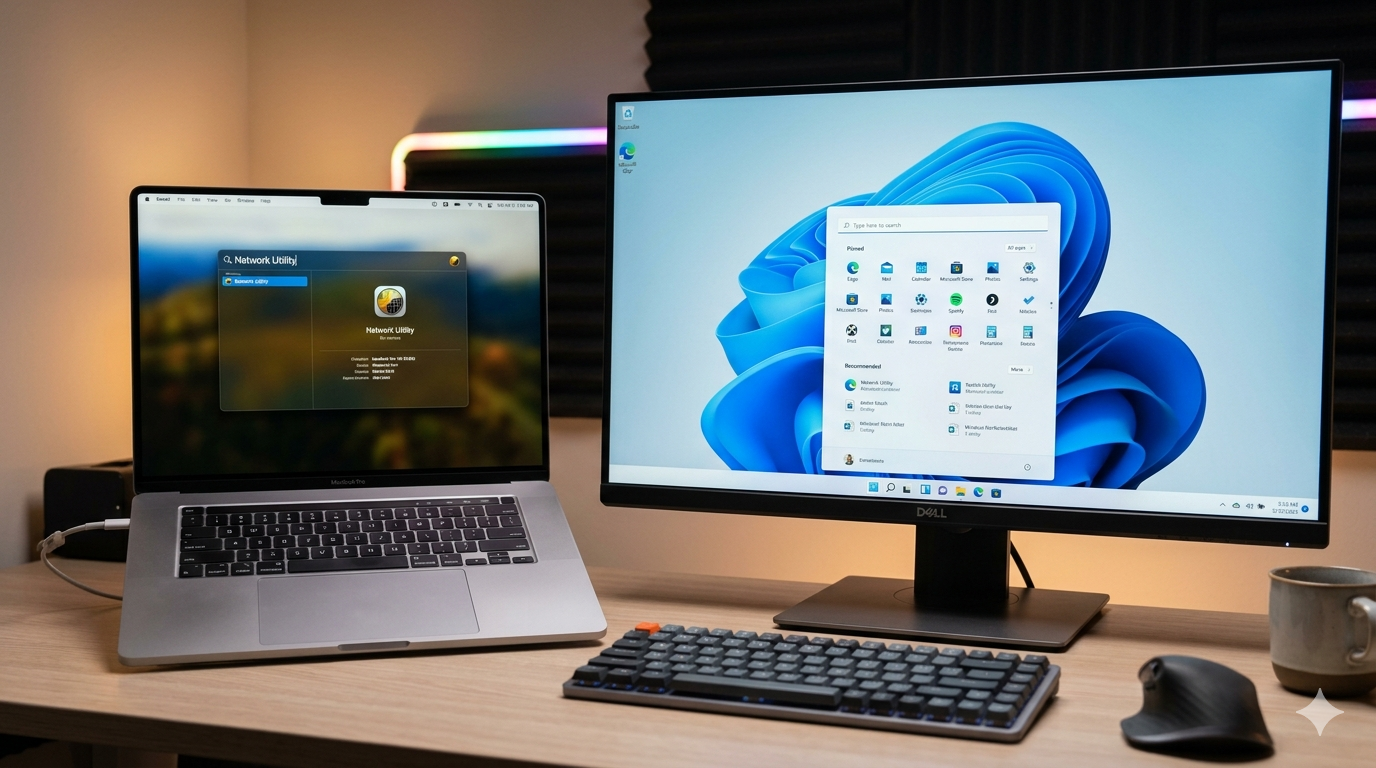
On a Mac, press Command + Spacebar and start typing — anything. Files, apps, emails, calculator math, unit conversions, even weather. Spotlight is basically a superpower that most Mac users ignore. If you're still double-clicking your way through Finder folders to find stuff, stop — you're working too hard.
Stop Ignoring Those Update Notifications
Updates aren't just about new features — most of them are security patches that protect you from hackers and malware. Clicking "Remind Me Later" every single day for six months is how people end up calling me in a panic. Set aside 10 minutes once a week, let the updates install, and restart. Your computer will thank you. So will your bank account.
Task Manager Is Your Computer's Pulse Check
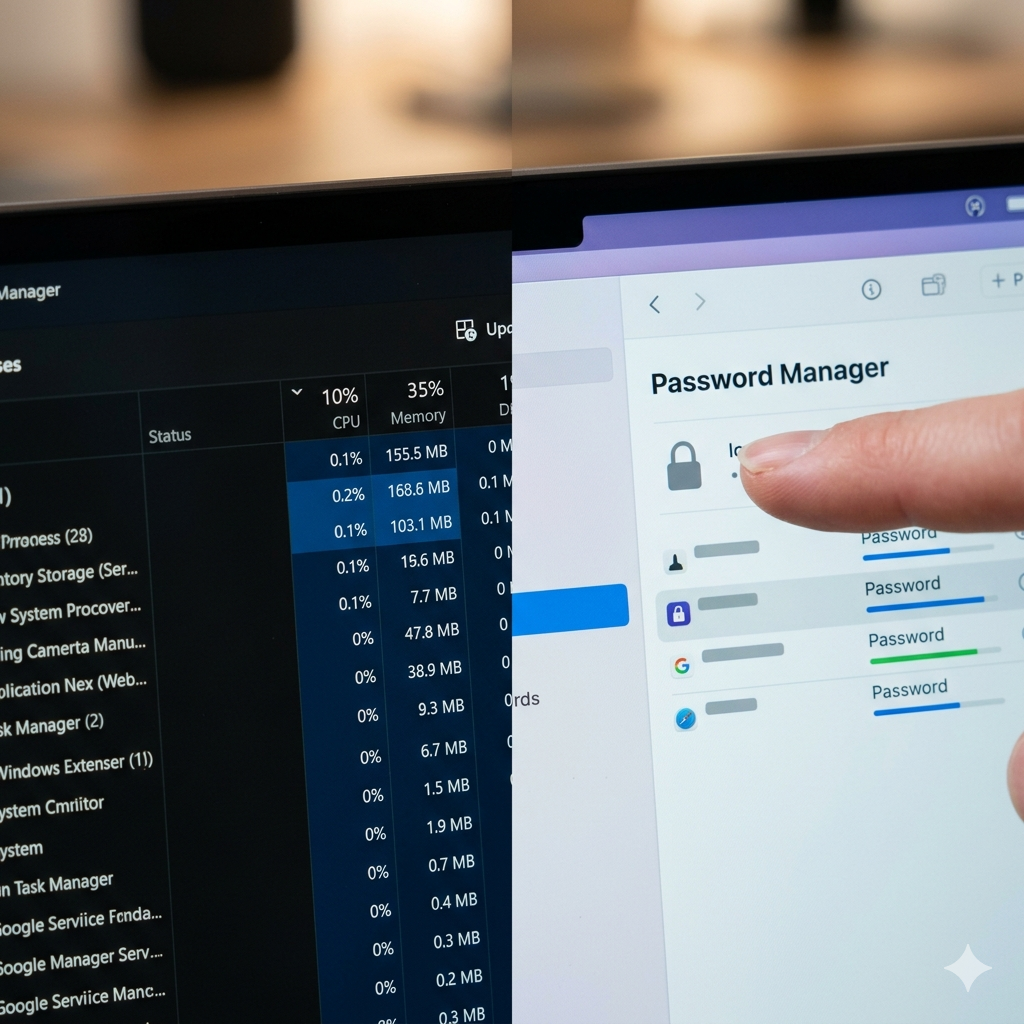
If your PC feels slow and sluggish, press Ctrl + Shift + Esc to open Task Manager and click the "CPU" or "Memory" column to sort by usage. You'll instantly see what's hogging your resources. Sometimes it's a browser with 47 tabs open (you know who you are). Sometimes it's a program you didn't even know was running. Knowledge is power — and speed.
AirDrop Is the Easiest File Transfer You're Not Using
If you have a Mac and an iPhone (or iPad), AirDrop lets you wirelessly beam photos, documents, and files between them instantly — no cables, no email, no cloud required. On your iPhone, tap the Share button on any photo and look for AirDrop. On a Mac, it's in Finder's sidebar. Once you use it, you'll wonder how you survived without it.
A Password Manager Will Change Your Life
Using the same password everywhere is like using one key for your house, car, office, and safe deposit box. When one gets stolen, they all get stolen. A good password manager like Bitwarden (free!) or 1Password generates strong unique passwords and remembers them for you. You only need to remember one master password. It's the single best thing you can do for your online security — and I can help you set it up.
ChatGPT & Claude Aren't Just for Nerds
AI tools like ChatGPT and Claude are genuinely useful for regular people right now. Need to write a professional email but don't know how to start? Ask. Want to understand a confusing bill or contract? Paste it in and ask for a plain-English explanation. Trying to plan a trip? It'll help. Think of it like a really smart assistant who's available 24/7 and never judges your questions. I can even walk you through getting started — it's one of my favorite things to teach.
Your iPhone's Hidden Shortcuts Are a Game-Changer
Most people use about 20% of what their iPhone can do. Here are three quick wins: First, tap the back of your phone twice to trigger an action like a screenshot (Settings > Accessibility > Touch > Back Tap). Second, swipe down on your home screen to get a search bar that finds anything on your phone instantly — just like Spotlight on a Mac. Third, in Messages, press and hold any message bubble to react with an emoji instead of typing a reply. Small things, big difference.
Android Does More Than You Think — Right Out of the Box
Android users, you've got some serious power at your fingertips. Try this: press and hold on any blank spot on your home screen to customize your layout, widgets, and shortcuts. Want to find something fast? Swipe up from the bottom to get to your app drawer, then just start typing — it searches everything. And if you're a Google Photos user, make sure Backup is turned on (open Google Photos > your profile picture > Photos Settings > Backup). Losing your photos because backup was off is a call I get way too often.
Back Up Your Stuff. Seriously. Today.
Hard drives fail. Laptops get dropped, stolen, or caught in coffee-related accidents. If your photos, documents, and files only exist in one place, you're one bad day away from losing them forever. Set up Windows Backup or Time Machine on Mac, or use a cloud service like Backblaze (about $9/month for unlimited backup). A backup you never had to use is the best money you ever spent. A backup you wish you'd had is a much sadder story.
Get Remote Help Now Contact Us
5 Signs Your Windows 10 PC Needs to Be Replaced
If you're still running Windows 10, here's something you need to know: Microsoft officially ended support on October 14, 2025. That means no more security patches, no more bug fixes, and no more protection against the hackers who are already writing software to exploit those gaps.
But here's the thing — not everyone needs a new computer just because Windows 10 is done. Some machines can be upgraded to Windows 11 for free. Others can't. And some computers are just plain tired and ready to retire, regardless of the operating system.
Here are five signs your PC is telling you it's time for a replacement:
If you're walking away to make coffee while your computer boots, that's not normal anymore. A healthy modern PC should be up and ready in under 30 seconds. Constant slowness usually means aging hardware — a slow hard drive, not enough RAM, or a processor that's just worn out.
Windows 11 requires specific hardware — most importantly, a TPM 2.0 chip and a compatible processor. Many PCs made before 2018 don't qualify. If your machine fails the Windows 11 compatibility check, Microsoft has essentially told you: this PC is at the end of its road.
A PC from 2017 or 2018 was built for a completely different era of software. Today's apps, browsers, and video calls put way more demand on your hardware. If your machine is pushing 6+ years old, it's not just slow — it's becoming a liability for your business.
One repair is normal. Two or three in the same year? That's your computer waving a white flag. When you're spending money fixing the same machine over and over, you're throwing good money after bad. At some point a new PC is simply the smarter investment.
Grinding, clicking, or constant fan noise are physical warning signs. Hard drives fail. Fans wear out. Thermal paste dries up. These aren't software problems — they're mechanical ones. If your PC sounds like it's working harder than it should just to run a browser, the end may be closer than you think.
📞 (707) 703-2711 | 💬 Text Us | Contact Us Online
How to Tell If Your Computer Has a Virus — 7 Warning Signs You Should Know
One of the most common calls I get goes something like this: "My computer is acting weird — do you think I have a virus?" Sometimes the answer is yes. Sometimes it's something else entirely. But knowing what to look for can save you a lot of stress — and a lot of money.
Here are seven warning signs that your computer may be infected, and what to do about it.
If your PC used to run fine and now everything feels sluggish — programs take forever to open, websites crawl, simple tasks feel painful — something may be running in the background that shouldn't be. Malware often hides and quietly uses your computer's resources without your knowledge.
Random pop-up ads, fake warning messages, or windows that keep appearing even when your browser is closed are a classic sign of adware or malware. Legitimate software doesn't behave this way. If you're seeing scary messages like "Your computer is infected — call this number immediately," don't call. That's a scam.
Did your homepage suddenly change? Is there a new toolbar you didn't install? Are your searches going to an unfamiliar site? Browser hijackers are a common type of malware that quietly takes over your browser settings to redirect your traffic or serve you ads.
If you're seeing applications launch or close without you touching anything, or if your mouse seems to move on its own — pay attention. This can be a sign of remote access malware, which is one of the more serious infections. Someone may actually be controlling your computer without your knowledge.
Some malware is specifically designed to turn off your antivirus or Windows Defender so it can operate without being caught. If your security software suddenly says it's off and you can't turn it back on, that's a red flag. Don't ignore it.
If someone tells you they received a strange email or social media message from your account — and you didn't send it — your account or computer may be compromised. Some malware is specifically designed to spread by hijacking your contacts and sending itself out.
Certain types of malware create and store large numbers of hidden files on your hard drive. If your available storage is dropping rapidly and you haven't downloaded anything, that's worth investigating.
What should you do if you see these signs? First, don't panic — and don't call any phone number that pops up on your screen. Many of those are scams designed to charge you hundreds of dollars to "fix" a problem they invented. Second, don't keep using the computer for banking or email until it's been checked out.
I've been removing viruses and malware from Sonoma County computers for over 29 years. Most infections can be cleaned up remotely without you ever leaving your home or office.
📞 (707) 703-2711 | 💬 Text Us | Contact Us Online
What Is Microsoft 365 — And Does Your Small Business Actually Need It?
I hear this from small business owners all over Sonoma County at least once a week: "Craig, I already have Word on my computer. Why would I pay for Microsoft 365 every month?"
It's a fair question. Nobody wants to pay a subscription for something they think they already have. So let me break it down in plain English — what Microsoft 365 actually is, what you get, and whether it makes sense for your business.
Microsoft 365 is a subscription that bundles together a whole suite of tools your business probably already needs: Outlook for professional business email (yourname@yourbusiness.com), Word, Excel, and PowerPoint that are always up to date on every device, OneDrive cloud storage so your files are never stuck on one computer, Teams for chat and video calls, and Microsoft Defender for built-in security protection.
The old way was: buy Office once, install it on one PC, and hope nothing goes wrong. Your files lived on that one machine — if it died, your work went with it. And that copy of Office got older and less secure every year. Microsoft 365 fixes all of that.
With Microsoft 365, your files live in the cloud — specifically in OneDrive. That means you can access them from your office, your phone, or your laptop at home. If your computer dies tomorrow, your files are completely safe. Your team can share and edit documents at the same time, without emailing attachments back and forth.
For a one-person shop in Petaluma or a five-person crew in Santa Rosa, that kind of flexibility used to cost a lot more. Now it's baked right in.
Microsoft 365 Business Basic starts at around $6 per user per month. Business Standard — which includes the full desktop apps — runs about $12.50 per user per month. For most small businesses, that's less than a couple of coffees a month per person, for tools your team uses every single day.
The bigger question isn't whether you can afford it. It's whether you can afford not to have your files backed up, your email professional, and your software secure.
You're a good candidate for Microsoft 365 if your business email is still @gmail.com or @yahoo.com, your files only live on one computer, you're using an old version of Office that hasn't been updated in years, your team shares files by emailing attachments back and forth, or you've ever lost work because a computer crashed. Any one of those is a good enough reason to make the switch.
This is where I come in. Picking the right plan, setting up your accounts, migrating your old email and files over, getting everyone trained — I handle all of it. You don't need to figure out Microsoft's website or sit on hold with their support line.
I've been helping Sonoma County businesses set up and run Microsoft 365 for years. I know which plan fits which type of business, and I won't sell you more than you need.
📞 (707) 703-2711 | 💬 Text Us | Contact Us Online
How AI Can Save Your Small Business Time — Without the Tech Headache
Before we even talk about what AI can do for your business, let me point something out. When Google Maps reroutes you around traffic, that's AI. When your email filters spam before you see it, that's AI. When your phone recognizes your face to unlock — AI again.
You're not afraid of any of those things. And you probably couldn't imagine running your business without them.
The AI tools available to small businesses today work the same way — quietly in the background, handling the boring repetitive stuff so you can focus on actually running your business.
There are hundreds of AI tools out there, and more launching every week. Some are genuinely useful for small businesses. A lot of them are noise.
The question isn't whether AI can help your business. It can. The question is which tools are right for what you actually do — and how do you get them working without turning it into a full-time project. That's exactly what I do.
The right AI tools, set up correctly, handle the tasks that eat your time without adding value: writing emails, proposals, and follow-ups for you; answering routine customer questions automatically; summarizing documents and reports so you get the key points fast; planning and drafting marketing content in a fraction of the time; and automating repetitive tasks like scheduling, reminders, and data entry.
The goal isn't to replace how you run your business. It's to stop letting low-value tasks steal time from the work only you can do.
I want to be straight with you. These tools don't just plug themselves in and run. They need to be configured for your specific business, connected to your existing systems, and tested before you trust them.
That's where most business owners get tripped up. They try something free, it doesn't quite do what they expected, and they write off the whole thing.
What I bring is the experience to know which tools are actually worth your time, set them up the right way, and make sure you and your team know how to use them. No science projects. No tech overwhelm. And since most of this work can be done remotely, I'm able to help businesses well beyond Sonoma County too.
Your competitors are already looking at this. The businesses that figure out how to put AI to work now — even in small, practical ways — will have a real advantage over the ones that wait.
You don't need to understand how it works. You just need someone who does.
📞 (707) 703-2711 | 💬 Text Us | Contact Us Online
Mac vs. PC — Which One Is Right for Your Small Business?
"Craig, should I get a Mac or a PC?"
I've been asked this question more times than I can count over 29 years in the business. And the honest answer is — it depends. Both are solid machines. Both will get the job done. But when you're buying for a business, there are some important differences that most people never think about until after they've already spent the money.
Let me break it down the way I'd explain it to a friend.
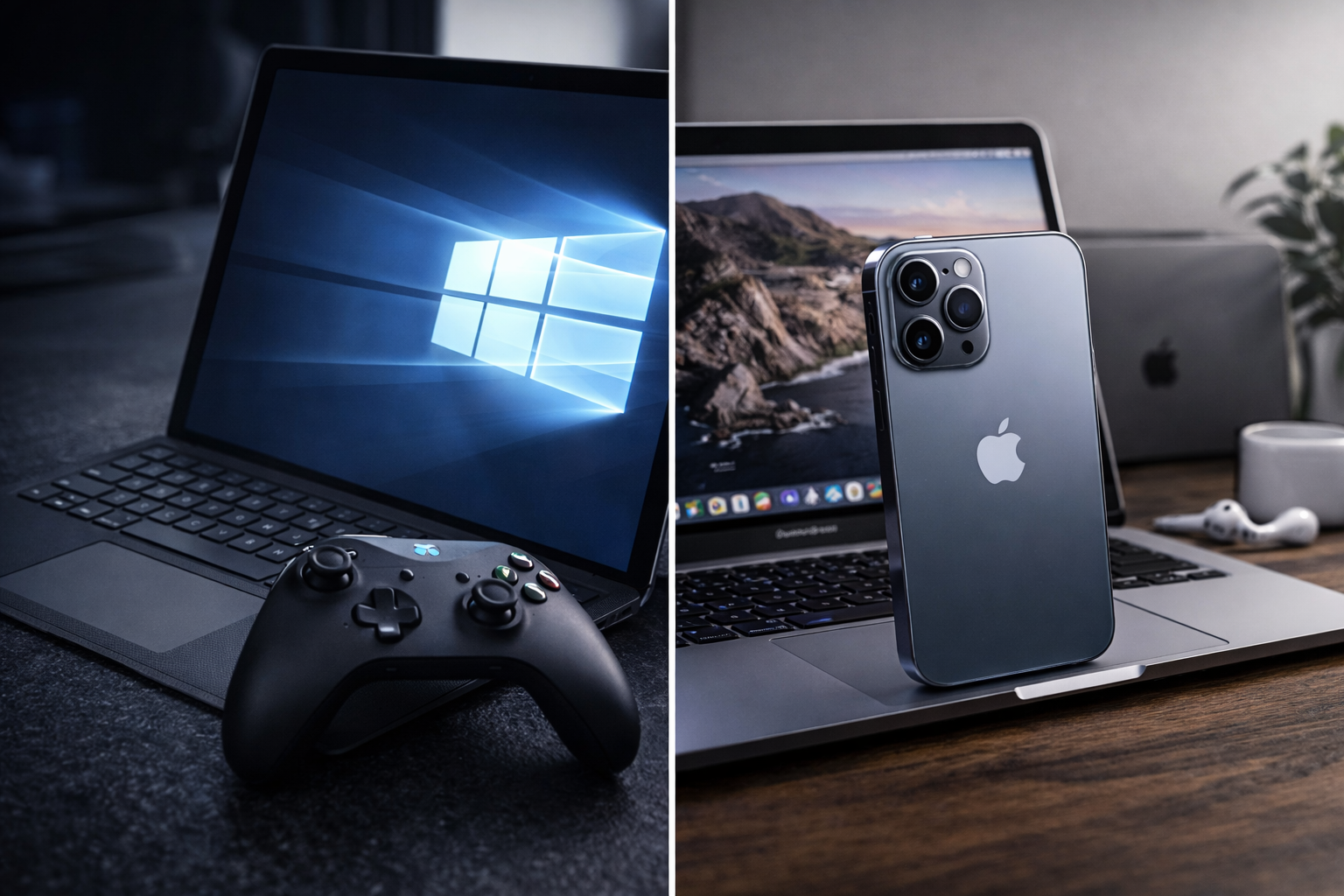
Macs are beautiful machines. Apple makes great hardware — nobody's arguing that. But you're going to pay for it. A business-ready MacBook Pro or iMac will typically run you $1,500 to $2,500 or more. A comparable Windows PC — same processor speed, same RAM, same storage — can often be had for $800 to $1,400.
That's a real difference, especially if you're outfitting a small team. Three employees on Macs versus three on PCs can easily mean a $3,000 to $4,000 gap before you've bought a single piece of software.
Here's the part that drives me crazy — and that almost nobody mentions when they're selling you a Mac. Apple typically supports a Mac for about 5 to 7 years before it stops receiving macOS updates. Once that support window closes, your machine no longer gets security patches. It still works, but it's running an outdated operating system that bad guys know how to exploit.
A well-built Windows PC, properly maintained, can realistically run 8 to 10 years and stay fully supported the entire time. So when you do the math — you paid more upfront for the Mac, and it has a shorter useful life in a business setting. That's not a knock on Apple. It's just the reality of their product cycle.
The majority of business software — accounting platforms, industry-specific tools, line-of-business applications — is built for Windows first. Most of it runs on Mac too, but not always perfectly, and not always at the same price. If your industry uses specialized software — construction estimating, medical billing, point-of-sale systems, legal software — there's a good chance the Windows version is more complete, better supported, and cheaper.
PCs also integrate more naturally into business networks, domain environments, and remote management tools. If you ever have an IT person managing your systems, Windows is almost always easier and cheaper to support at scale.
This one comes up more than you'd think — and I say it with complete kindness — I get calls from people who bought a Mac because they love their iPhone or iPad, figured it would feel just like home, and then couldn't figure out how to turn it off. I'm not exaggerating. "Where's the Start button?" "Where are my files?" "Why won't my software install?" These are real calls I get from real people who just spent $1,800 on a new computer.
Here's the truth: your iPhone and iPad are incredibly easy to use because Apple designed them that way on purpose. The Mac is a completely different animal. Loving one does not prepare you for the other — at all. It's like someone who's only ever driven an automatic deciding to take a brand new manual transmission car out for their first drive on the hills of San Francisco. Both are cars. That's where the similarity ends.
If you're switching from Windows to Mac for the first time, plan for a real learning curve — and budget time for it. It's not impossible, not even that hard once you get the hang of it. But it is a genuine transition that catches a lot of people off guard.
To be fair — Macs are fantastic for certain types of businesses. If you're in creative work — graphic design, video production, photography, music — the Mac ecosystem is hard to beat. And if your team is already deep in the Apple world — iPhones, iPads, AirDrop — a Mac can fit in very naturally. They're reliable, well-built machines. This isn't about bashing Apple. It's about making sure you get the right tool for your situation.
For most small businesses — retail, professional services, trades, healthcare, real estate, restaurants — a well-spec'd Windows PC is going to give you more value, longer life, better software compatibility, and lower total cost of ownership.
For creative shops or businesses already living in the Apple world, a Mac makes sense and you'll probably love it.
The worst thing you can do is buy either one without a plan — no backup, no updates, no support structure. I've seen $2,500 Macs fail just as spectacularly as cheap PCs when nobody's taking care of them.
📞 (707) 703-2711 | 💬 Text Us | Contact Us Online
Why Your Business Needs Professional IT Support in 2026
I hear this a lot: "Oh, Dave in accounting is pretty good with computers — he handles our IT stuff." I get it. Hiring a full-time IT person feels like overkill for a small business, and paying an outside company feels like an unnecessary expense when someone on staff can "figure it out."
Here's the thing — Dave is probably great at the basics. Rebooting a frozen computer, restarting the router when the internet drops, clearing a paper jam, moving a computer from one office to another when someone switches desks. That stuff is genuinely fine for Dave to handle. No need to call a professional every time someone's screen freezes.
But there's a big difference between "Dave can restart your router" and "Dave should be setting up your new computers or managing your network security." That's where good intentions turn into real risk.
Basic troubleshooting and actual IT infrastructure are two completely different skill sets. Being comfortable enough to reboot a frozen PC doesn't mean someone understands how to properly configure a new computer, set up secure network permissions, or make sure backups are actually working — not just scheduled, actually working, which are two very different things.
The businesses that get into trouble aren't the ones letting Dave restart the router. They're the ones letting Dave set up a brand new computer, configure the Wi-Fi, or manage who has access to what — without any formal training in how to do those things securely.
When a new computer gets set up quickly just to get someone working, corners often get cut without anyone realizing it. Weak or default passwords. No proper backup configured. Security software skipped or left on default settings. Software installed without checking for compatibility or security issues. None of this causes a problem on day one — that's exactly the danger. It sits there quietly until it becomes the reason a virus spreads through your network or a hard drive fails with nothing backed up.
Even when Dave is doing something within his wheelhouse — like restarting equipment or moving a computer — every minute he spends on tech tasks is time away from his real job. Now imagine him trying to properly configure security settings or troubleshoot a network issue he's never been trained on. That's not a quick fix anymore — that's hours of trial and error, likely followed by a call to a professional anyway, except now there's also a mess to untangle first.
Depending on your industry, you may have real legal obligations around how you store customer data, financial records, or health information. A new computer set up without proper security isn't just a technical risk — it can become a legal one. This isn't about scaring you; it's about making sure a data breach doesn't become a legal problem on top of a technical one.
Let Dave keep doing what he's already good at — the fast, simple stuff that keeps the day moving. Bring in a professional for anything that involves setting up new equipment, configuring security, managing backups, or connecting new systems to your network. It's not about replacing Dave. It's about making sure the important stuff is handled by someone trained to handle it.
📞 (707) 703-2711 | 💬 Text Us | Contact Us Online
The Cheapest Thing You Can Do to Protect Your Business from Hackers
I get asked all the time — "What's the one thing I should do to protect my business from getting hacked?" People expect me to say expensive security software or a fancy firewall. The real answer is way simpler, and it's free: turn on multi-factor authentication.
If you don't already know what that is, don't worry — by the end of this article you will, and you'll probably turn it on before you finish your coffee.
Multi-factor authentication — usually shortened to MFA, sometimes called two-factor authentication or 2FA — means that logging into an account takes more than just a password. After you type your password, the system asks for a second piece of proof that it's really you: usually a code sent to your phone, or a tap on an app like Microsoft Authenticator or Google Authenticator.
That's it. Password, plus one more quick step. That one extra step is doing an enormous amount of heavy lifting.
Here's the reality: the vast majority of hacks don't involve some genius breaking through firewalls in a dark room. They involve a stolen or guessed password. Passwords get leaked in data breaches, guessed through trial and error, or handed over by an employee who clicked a fake login page in a phishing email.
Once a hacker has your password, without MFA, they're in. Your email, your files, your banking — whatever that password protects. With MFA turned on, a stolen password isn't enough. The hacker also needs your phone. Suddenly, an attack that would have taken thirty seconds becomes something they simply can't pull off.
This is the part that makes it such an obvious move. MFA isn't a product you buy. It's a setting that's usually already built into the accounts you're already paying for — Microsoft 365, Google Workspace, your bank, your email provider. You're not adding a new expense to your budget. You're just turning on a switch that's already sitting there.
If you do nothing else after reading this, turn on MFA for these accounts today: your email, since if a hacker gets into your email they can reset the password on almost everything else you own; Google and Facebook, which surprises people, but think about how often you see "Sign in with Google" or "Sign in with Facebook" on other websites and apps — if a hacker gets into either of these, they may be able to sign into every other account you've linked to them, sometimes without even needing a separate password; Microsoft 365 or Google Workspace, since your business's entire digital life often runs through one of these; your banking and payment accounts, for obvious reasons; and any account with saved credit card or customer information.
If you only have time to protect a couple of things today, protect your email, Google, and Facebook. Those three are the master keys to almost everything else.
I hear this pushback a lot. Yes, it means one extra step when you log in from a new device. But most services let you mark a device as trusted, so you're not doing this every single time — just occasionally, or when logging in somewhere new. Compare that tiny inconvenience to the alternative: a compromised email account, stolen customer data, or a ransomware attack that shuts your business down for days. The math isn't close.
If you're not sure how to turn on MFA for your accounts, or you want it rolled out properly across your whole team, this is a quick and easy thing for me to handle. I'll get it configured correctly, make sure everyone knows how to use it, and set up backup options so nobody gets locked out of their own account.
📞 (707) 703-2711 | 💬 Text Us | Contact Us Online
What to Do When Your Computer Dies and You Have No Backup
"Craig, my computer won't turn on and I don't think I have anything backed up." I can hear the panic in people's voices when they say this — like they just watched ten years of family photos, business records, and tax documents disappear into thin air.
You know what happens next? Everyone assumes it's gone. Gone-gone. Like, throw-a-funeral gone. And you know what I'm here to tell you? Slow down there. It's very often nowhere near as bad as it feels in that moment. Let's talk about what to actually do — and, maybe more importantly, what NOT to do — if this happens to you.
I mean it. Put the mouse down. Step away from the keyboard.
The single most important thing you can do right now is stop using the computer. Don't restart it seventeen times in a row like that's somehow going to convince it to change its mind. Don't download some "Ultimate PC Fixer 3000" tool you found on a website that also happens to be advertising discount pharmaceuticals. And please, for the love of all that is holy, don't crack it open with a butter knife if you don't know what you're doing in there.
Every extra attempt to power on a failing hard drive risks making things worse — sometimes turning "we can probably get this back" into "well, that's unfortunate." If it's off, leave it off.
Here's a fun fact nobody wants to hear in a panic: "my computer died" can mean about six different things, and the fix depends entirely on which one you've got.
Won't turn on at all? Could just be a power supply or a dead battery — sometimes has nothing to do with your files whatsoever. Turns on but won't boot? The operating system might be corrupted while your actual hard drive and files are sitting there completely fine, patiently waiting to be rescued. Making clicking, grinding, or — worse — a burning smell? Okay, now we're talking about an actual physically failed hard drive. This is the one that gets serious. Black or cracked screen, but you can hear the fans spinning? Good news — your drive is almost certainly fine. It's a display or power issue, not a data issue.
So take a breath. A dead computer and a dead hard drive are two very different animals, and most of the time, you're not actually dealing with the scary one.
Here's the part that surprises people: even when a computer won't start at all, we can usually pull the hard drive out and grab your files off of it using specialized equipment — no working computer required. Works for most mechanical failures and pretty much all software crashes.
Where it gets genuinely dicey — and pricier — is when the drive itself has physically failed. Clicking, grinding, dropped on the floor, went for a swim in a cup of coffee. Even then, professional data recovery can sometimes save the day, though the cost climbs and nobody can promise you a miracle.
I know. I know. You typed "how to recover files from a dead hard drive" into Google at 11pm and found seventeen YouTube videos that made it look easy. Please — close the tab.
A lot of that DIY recovery software actually writes new data onto the failing drive while it's "fixing" it, which can permanently bury the exact files you're trying to save. If your data actually matters to you, the smartest move is to stop touching it and get a professional opinion first.
Pricing depends heavily on what actually went wrong. A software or boot issue? Usually quick, usually reasonable, often just part of a normal diagnostic visit. A physically failed drive? That's more specialized work, and the cost goes up accordingly — sometimes significantly, depending on how bad the damage is.
I'll always give you an honest number before doing anything, including telling you flat out if it's not worth spending the money to recover what's on there.
Alright, crisis handled. Now let's talk about how we make sure you never have to have this conversation with me again. Spoiler: the answer is an actual backup system — not "good intentions," which, as we've established today, don't hold up great under pressure.
If you've talked to me about backups before, you know I'm a big believer in redundancy. One backup is good. Two backups, in two different places, is a whole lot better.
Plan A should be a local backup — an external hard drive plugged straight into your computer, or a Network Attached Storage (NAS) device if you're backing up more than one machine. Local backups are fast, they don't care whether your internet's working, and they get you back up and running the quickest.
Plan B should be an online backup — something like Carbonite or iDrive running quietly in the background, storing your files somewhere far away from your desk. This is your safety net if the local backup also has a bad day — fire, theft, or you simply forgetting it exists for six months (we've all been there). I see a lot of people using Dropbox or OneDrive for this too. They're great tools, but I think of those more as file-syncing than true backup — useful, but not quite the same job.
Here's the thing: the businesses that get burned almost never have zero backup. They have exactly one backup, and that one backup happened to fail at precisely the worst possible moment. Redundancy means one bad day never costs you everything.
📞 (707) 703-2711 | 💬 Text Us | Contact Us Online
Why You Need Two-Step Verification (And a Backup Email You Can Actually Get Into)
I get this call more than you'd think: someone's Facebook got hacked, or their Gmail got hacked, and now they're locked out of their own life. Not just locked out of Facebook — locked out of everything, because half the internet uses "Sign in with Google" or "Sign in with Facebook" to log into other sites. Once a hacker's got one, they've basically got the keys to the whole building.
And then it gets worse, because when we try to help them get back in, there's no backup email, no phone number on file, nothing. The account recovery process asks a question nobody can answer, and that's it. Gone. Let's fix that before it happens to you.
I've said this before and I'll keep saying it until everyone listens: turn on two-step verification — also called two-factor authentication, or 2FA — on your email and your Facebook. It's free, it takes five minutes, and it means a stolen password alone isn't enough to get in — the hacker also needs your phone. That one extra step stops the overwhelming majority of account takeovers cold.
Here's the thing nobody thinks about until it's too late: that free Gmail or Yahoo account you've had since 2009? If you get locked out of it and there's no backup email or phone number attached, there is often no way back in. Not "call customer service and cry about it" — there frequently isn't a customer service line for free email accounts. You're just locked out. Forever. Whatever's in there — old photos, tax documents, ten years of email history — gone with it.
Go add a recovery phone number and a backup email address to your account settings right now. It takes two minutes and it's the difference between "mild inconvenience" and "everything I've ever emailed is gone forever."
When Facebook gets hacked, it's not just embarrassing spam messages going out to your friends. A lot of people use Facebook to log into other apps and websites — so a hacked Facebook account can turn into a hacked something-else account, and then another, and another. It's a domino effect, and most people don't realize the first domino fell until the fifth one's already down.
Turn on two-step verification here too. Same five minutes, same enormous payoff.
This one's a newer problem, and it catches people constantly. Windows computers now often turn on BitLocker encryption automatically, which locks your hard drive behind your Microsoft account. Great security feature — until your computer has a problem, asks for the BitLocker recovery key, and you have absolutely no idea what your Microsoft account password even is, let alone where to find a 48-digit recovery code.
Suddenly a simple computer repair turns into a multi-day nightmare of trying to remember or reset a Microsoft account you didn't even know you had.
Here's my real-world advice, and I say this as someone who deals with the fallout constantly: unless you've got something on that hard drive worth protecting like it's the secret recipe for KFC's eleven herbs and spices or the formula for Coca-Cola, you probably don't need BitLocker turned on.
For most home users, encryption creates way more risk of you locking yourself out of your own computer than it does protection from some hacker breaking down your door for your family photos and Amazon order history. I can help you check whether it's on, and turn it off if it's more trouble than it's worth for your situation — or make sure your recovery key is actually saved somewhere you can find it if you do want to keep it.
📞 (707) 703-2711 | 💬 Text Us | Contact Us Online